Halaman

Tampilkan postingan dengan label computer. Tampilkan semua postingan

Kamis, 28 Oktober 2010

Smart EVDO internet akses

Jangkauan (coverage area) Smart EVDO per tanggal 17 Juli 2010

CONTENTS

  1. Jakarta Pusat
  2. Jakarta Barat
  3. Jakarta Utara
  4. Jakarta Timur
  5. Jakarta Selatan
  6. Bandung
  7. Semarang
  8. Jogjakarta
  9. Solo
  10. Surabaya
  11. Bali
  12. Malang


Jakarta Pusat
Gambir
Tugu Tani
Kebon Sirih
MH Thamrin
Menteng
Cikini
Pegangsaan
Salemba
Kramat
Johar Baru
Senen
Cempaka Putih
Pasar Baru
Gunung Sahari
Harmoni
Petojo
Cideng
Kampung Bali
Kebon Kacang
Kebon Melati


Jakarta Barat
Pal Merah
Kelapa Dua
Pos Pengumben
Daun Sulaiman
Kebayoran Baru
Letjen Soepono
Palmerah Barat
Permata Hijau
Tentara Pelajar
Letjen S Parman
Pejompongan
Gerbang Pemuda
Asia Afrika
Sudirman
Pintu 1 Senayan
Sisingamangaraja
Pattimura
Senopati
Kapt Tendean
Mega Kuningan
Gatot Subroto
Supomo
Tebet
Asem Baris
Abdul Syafie
Dr Saharjo
Manggarai
Sultan Agung
Casablanca
Rasuna Said
Jend Sudirman
Rm Margono
KH Mansyur
Benhil
Joglo
Meruya
Puri Indah
Kembangan
Daan Mogot
Kebon Jeruk
Tegal Alur
Kamal
Citra Garden 5
Citra Garden 3
Citra Garden 2 Ext
Peta Utara
Komp Merpati (MNA)
Puri Gardena 1
Puri Gardena 2
Peta Barat
Citra Garden 1
Peta Selatan
Kalideres Permai
Daan Mogot Baru
Citra Garden 2
Citra Garden
Taman Surya 5
Taman Surya 3
Taman Palem Lestari
Komp Pemda
Kavling Pemda
Kavling PTB
Taman Kencana
Kamal Raya
Komp KFT
Cengkareng
Cengkareng Barat
Kapuk
Mutiara Taman Palem
Perumnas Bumi Cengkareng Indah
Cengkareng Timur
Cengkareng Indah
Ciledug


Jakarta Utara
Bekasi Raya
Pegangsaan Dua
Musik Raya
Bulevar Timur
Kelapa Kopyor Raya
Kelapa Nias Raya
Kelapa Hibrid gading
Vila Sanur
Vila Tampang siring
Vila Kuta
Vila Kintani
Gading Raya
Bogor Bulevar
Bulevar Barat
Kelapa Gading
Letjeb Suprapyo
Sunter Jaya
Sunter Jaya Barat
Mitra Sunter Bulevar
Sunter Jaya Barat
Ledondong Raya
Sunter Raya
Danau Sunter Selatan
Danau Sunter Utara
Tol Pelabuhan
Sunter Permai Raya
Danau Sunter Barat
Pantai Indah Kapuk
Pluit


Jakarta Timur
Pulo Mas
Pulo Gadung
Pulo Asem Utara
Taruna
Cipinang jaya
Bekasi Timur Raya
Bojana Tirta
Cipinang Baru
Duren Sawit Raya
Buaran Raya
Perumnas Raya
Delima Raya
Wijata Kusuma
Teratai Putih Raya
Pondok Kopi
Cilincing
Sentra Primer Timur
Pulo Gebang penggilingan
Penggilingan Elok
Condet
Kramat Jati
Kp Rambutan
Cijantung
Ciacas
Cipayung
Pondok Gede
Bekasi
Lubang Buaya
Kampung Melayu Besar
Balimester
Otto Iskandar
Dewi Sartika
Jend Sutoyo
Jengki
Halim Peradana Kussuma
Trikora
Kali Malang
Kebon Nanas
Media Massa
Pahlawan revolusi
Jend R S Soekanto
Pondok Kelapa Raya
Kali Malang
Jati Waringin
Angrah
Jati Bening
Curug


Jakarta Selatan
Kebayoran Lama
Kebayoran Baru
Mampang
Cipete Utara
Cilandak
LB Bulus
Kebayoran Lama
Kebayoran Baru
Senayan
Jend Gatot Subroto
Rasuna Said
Kapten Tandean
Mampang Prapatan
Tegal Parang Utara
Tegal Parang Selatan
Pasar Minggu Raya
Pahlawan Kalibata
Letjen MT

Access Your Free Yahoo! Mail via MacFreePOPs

Using Apple Mail for Yahoo! users can be a stumper. Previously it could only be used by Yahoo! Mail Plus accounts, and not the free Yahoo! Mail accounts. But thanks to the free MacFreePOP service, you can now configure the Mail app to fetch, send out, and handle all of your Yahoo! mail.

/Users/Chet/Downloads/MacFreePOPs instruction/mailappThere’s no direct way to use Apple’s Mail app for your free Yahoo! Mail. You’d need a paid Yahoo! Mail Plus account to get through that “Create New Account” screen. Sure, you can sign up with Gmail (it’s free), and that’s a good alternative, or have a MobileMe account (free for 60 days), but if you REALLY want that free Yahoo! Mail account because you’ve wrapped your whole entire digital life on it, I've got your back! Luckily, there is a way to POP your way for cheapskates and stubborn Yahoo users like I.

Just like a recipe, you’ll need the following:

  • A free Gmail account
  • A free Yahoo! Mail account
  • MacFreePOPs
  • A Terminal code

Don’t be daunted. Following this guide should help you get through.

First off, sign up for a Gmail account if you don’t already have one. For those who want to avoid having multiple accounts, we can set Gmail to auto-forward whatever it receives to your Yahoo! email account, which will be discussed more later.

We need the Gmail account to be able to send outgoing mails. Unfortunately, our free Yahoo! Mail accounts won’t allow us to send mail out using Apple's Mail program.

I’m sure you already have a free Yahoo! Mail. That’s why you’re reading this article! We'll need the login details for your Yahoo! account to set up the account in Apple’s Mail.

Download, install, and update MacFreePOPs. The link can be found via Apple’s downloads section. It will handle forwarding your emails from Yahoo! to your Apple Mail.

Kamis, 21 Oktober 2010

How To: Dual Boot Mac OS X Snow Leopard and Windows 7 on a PC

Geeks love Macs because Macs are really cool. They are slick, stylish and freaking awesome! What about windows 7, by the way? Yea, it is also cool, slick, stylish, bug free and freaking awesome! Being a hardcore geek, what will you go for? A Mac with Snow Leopard or a PC with Windows 7? Not sure? Why not go for both of them?

Oh! Don’t have the money to afford both? Don’t worry! TheGadgets.net is here to help you out! You won’t even need to buy a Mac! Lo! This step by step guide will help you install Mac OS X Snow Leopard as well as Windows 7 on a single PC! You don’t even need a high end PC! Just your current computer will work!

Step by Step Guide to Dual Boot Mac OS X Snow Leopard and Windows 7 on a PC:

Note: You need to follow the steps in the given hierarchy. Performing them out of order will not work.

1. Backup your data:

The first and the most important thing is to backup your data. It is not optional at all because you need to format and partition your hard disk from scratch. Best option is to write the important files to a DVD ROM so that you are able to access them anytime, anywhere.

Tip: DVD ROMs work even in worst conditions when USB and network ports may fail.

Jumat, 24 September 2010

Smart EVDO Internet Unlimited

smart evdo internet unlimitedKoneksi internet Smart EVDO Rev A Unlimited kecepatan paket Silver 512 kbps, Platinum 3.1 Mbps, Ultimate 3.1 mbps/1.8 mbps. Jangkauan Jakarta Bandung Semarang Jogjakarta Solo Surabaya Bali Malang.

Saya heran dengan Smart EVDO. Dulu awal-awal promo gaungnya heboh sekali. Dalam waktu singkat jangkauannya sudah meliputi seluruh Jakarta. Bahkan sudah sampai Surabaya dan Malang kota sekitar 4 bulan lalu.

Saya sampai datang ke markas Smart di Jalan Coklat, Malang, kapan sih Smart EVDO sampai ke kampung saya yang berjarak sekitar 25 km dari kota. CS-nya belum tahu. Dan ternyata sampai sekarang masih adem ayem saja.  Semangat mau pakai Smart EVDO jadi agak kendor.

Tempo hari saya cukup senang dengan berita adanya koneksi internet unlimited berteknologi serupa bernama AHA EVDO dari BConnect (Bakrie Telkom). Namun ternyata, unlimited-nya tidak murni. Kecepatan 3.1 Mbps itu dengan catatan quota 3 GB. Setelah pemakaian mencapai 3 GB, maka kecepatan akan melorot tajam ke 200 Kbps. Sungguh kejatuhan yang tidak mengenakkan. Ibaratnya, AHA EVDO memanjakan kita dengan naik BMW dua hari, terus harus naik sepeda kebo pada 28 hari berikutnya.

Berbeda dengan Smart EVDO. Kecepatan 3.1 Mbps adalah tanpa quota. Jadi, kecepatan tidak turun-turun.

Akhirnya saya memutuskan untuk tidak memakai AHA EVDO Internet. Dan dengan sabar menunggu datangnya koneksi Smart EVDO Internet Unlimited ke kampung saya. Untuk sementara saya pasrah pakai Speedy yang kabel telponnya suka dicuri maling.

Berikut Tarif Smart EVDO (Paket Silver, Platinum, Ultimate) Harga Eceran (Harian, Mingguan) dan Bulanan

Paket Internet Unlimited

Maksimum Kecepatan Paket Harga Per Paket
Nama Paket Kecepatan Download
(sampai dengan)
Kecepatan Upload
(sampai dengan)
Harian Mingguan
Silver512 Kbps128 Kbps5.00025.000
Platinum3,1 Mbps384 Kbps10.00050.000
Ultimate3,1 Mbps1,8 Mbps18.00090.000
Maksimum Kecepatan Paket Harga Per Paket Bulanan
Nama Paket Kecepatan Download
(sampai dengan)
Kecepatan Upload
(sampai dengan)
1 bulan 6 bulan 12 bulan
Silver512 Kbps128 Kbps75.000400.000750.000
Platinum3,1 Mbps384 Kbps140.000750.0001.400.000
Ultimate*3,1 Mbps1,8 Mbps275.0001.450.0002.750.000

Kalau Anda berada di kawasan Malang dan sudah memakai Smart EVDO, tolong dikasih tahu nama kawasan Anda tinggal. Siapa tahu dekat dengan daerah saya. Apabila tinggal di kawasan lain di luar Malang, mohon diberitahu juga untuk diketahui tetangga sekitar Anda yang mau memakai layanan Smart EVDO.

Older » 24 September 2010 • 6:13 am Speedy Telkom Internet Speed 3 Mbps

speedy telkom internetDaftar lengkap paket koneksi internet Speedy Telkom dari yang limited sampai yang unlimited dengan kecepatan tertinggi 3 Mbps (paket termahal)

Boleh dikata, koneksi internet dari Telkom Speedy merupakan layanan paling luas jangkauannya (coverage area). Ini karena infrastruktur kabel telkom yang tersedia hampir di seluruh Indonesia. Kendati banyak keluhan atas lemotnya (kadang-kadang), atau mahalnya, Telkom Speedy menjadi pilihan utama koneksi internet di banyak daerah di Indonesia. Sambil menunggu para pesaing Speedy seperti Smart EVDO, AHA EVDO, dan Fastnet sampai ke tempat kita, menggunakan Speedy masih menjadi pilihan utama saya.

Berikut daftar paket internet Speedy, harga perbulan dan kecepatan maksimal yang ditawarkan.

NoPaketKecepatanHarga/BulanQuotaKet.
1.Paket MailI MbpsRp 75.00015 JamKelebihan quota bayar  Rp. 75 per menit

2

Paket Load512 kbpsRp. 295.000UnlimitedSetelah pemakaian 3GB speed turun 128 kbps

3

Paket ChatI MbpsRp. 145.00050 JamOver-usage Rp. 25 per menit

4

Paket Familia1 MbpsRp. 645.000Unlimited-

5

Paket Socialia384 kbpsRp. 195.000UnlimitedSetelah 3GB speed turun 128 Kbps

6

Paket Executive2 MbpsRp. 995.000Unlimited-

7

Paket Biz3 MbpsRp. 1.695.000Unlimited-

Untuk info lebih detail, silahkan hubungi 147 (nomor customer service Telkom)

Rabu, 22 September 2010

Jaringan melalui kabel listrik ? kenapa tidak ....

Tulisan ini merupakan tulisan yang telah di sampaikan pada seminar nasional sistem informasi pada tahun 2006.  Semoga masih bermanfaat bagi pembaca

1. PENDAHULUAN

Jaringan komputer adalah suatu tata cara berkomunikasi antara sumber daya informasi satu dengan lain melalui medium transmisi.  Medium transmisi yang dapat digunakan dalam melakukan transmisi data dapat dikategorikan dalam 3 (tiga) jenis media[1], yaitu :

a.   Kabel

b.   Udara, dan

c.   Cahaya

Media transmisi kabel saat ini merupakan salah satu media transmisi data yang cukup popular digunakan dalam melakukan komunikasi data antar sumber daya informasi, walau beberapa tahun terakhir ini keberadaannya mulai digeser oleh teknologi wireless yang memanfaatkan gelombang elektromagnetik sebagai media transmisi datanya.

Seiring dengan tumbuh dan berkembangnya suatu organisasi, kebutuhan akan koneksi sumber daya informasi menjadi bertambah sehingga pada suatu waktu infrastruktur jaringan yang tersedia tidak sanggup memenuhi kebutuhan organisasi tersebut. Penggunaan sarana komunikasi data dengan menggunakan perangkat wireless menjadi satu pilihan dalam upaya memenuhi kebutuhan tersebut.

Beberapa kasus, penggunaan perangkat wireless masih terkendala pada bentuk tata ruang yang ada, seperti pada gedung perkantoran bertingkat, karena sinyal komunikasi yang dikirim tidak dapat menembus ruang bertingkat.  Penambahan kabel komunikasi seperti UTP, coaxial maupun fiber-optic antar tingkat dalam gedung tersebut memiliki tingkat kesulitas tersendiri, apalagi jika perencanaan pembangunan awal dari gedung tersebut tidak memikirkan kemungkinkan pengembangan infra struktur teknologi informasi.

Pemanfaatan jaringan listrik tegangan rendah sebagai alternatif transmisi data melalui media kabel yang dikombinasikan dengan media transmisi lain baik melalui kabel UTP, coaxial maupun wireless dapat merupakan salah satu pilihan karena ketersediaan secara umum telah tersedia di gedung-gedung perkantoran dimana organisasi tersebut berada.

Rabu, 25 Agustus 2010

Cara Rahasia Internetan Gratis Dengan Kartu IM3

Kali ini saya akan tulis postingan yang cukup menarik yaitu Cara Rahasia Internetan Gratis Menggunakan Kartu IM3. Cara rahasia internetan gratis ini sebenarnya sudah banyak diketahui ama orang – orang pinter ( lho, brarti eCHO pinter dunk cool ). ngga juga seh, asalkan kita banyak surfing diInternet lama – lama juga bakal nemuin trik ini.
okeh dekh, langsung yah. ( maaf, mungkin posting kali ini bahasanya sedikit tingkat tinggi lol )
Akses internet gratis menggunakan kartu IM3 tidak perlu software segala macam, hanya saja pengaturan beberapa di modem kita, dan kemudian di sini teman – teman COba :
* Pertama
a. Membuat profil baru di modem Anda dengan nama indosatmms ( ingat bukan indosatgprs !! )
b. Isi Username dengan indosatmms
c. Isi password dengan indosatmms
d. Dengan APN dapat mengisi dengan indosatmms atau indosatgprs
e. DNS diisi dengan: 208.67.222.222 dan 208.67.220.220
* Kedua:
Fase kedua adalah fase input proxy. Caranya, buka Mozilla, pilih menu tool -> Option-> Advance -> Network -> Setting -> Manual proxy. Proxy yang terisi adalah 10.19.19.19 dan pada kolom port diisi oleh 8080.
Gunakan server proxy ini karena aman bebas dari hacker evil.
SELAMAT MENCOBA !! SILAHKAN BERKOMENTAR JIKA BINGUNG !!

Kamis, 24 Juni 2010

Metadata Elements - Robots META Tag


The Robots META Tag is meant to provide users who cannot upload or control the /robots.txt file at their websites, with a last chance to keep their content out of search engine indexes and services.

Examples of the Robots META Tag

The content="robots-terms" is a comma separated list used in the Robots META Tag that may contain one or more of the following keywords without regard to case: noindex, nofollow, all, index and follow.
noindex
Page may not be indexed by a search service.
nofollow
Robots are not to follow links from this page.
Admin Note: The robots directives of index, follow or all are not required as it is the default behavior of indexing spiders.

index
Robots are welcome to include this page in search services.
follow
Robots are welcome to follow links from this page to find other pages.
If this meta tag is missing, or if there is no content, or the robot terms are not specified, then the robot terms will be assumed to be "index, follow" (e.g. "all"). If the keyword all is found in the robots terms list it overrides all other values. That is, a robots terms that is "nofollow, all, noindex, nofollow", would effectively be "all".
If the robots terms contains contradictory information (e.g. "follow, nofollow, follow") then the robot is free to do whatever it wishes with regard to the behavior being addressed (in this case the follow behavior).

Common Usage for the Robots META Tag

The Robots META Tag is used for excluding content. We've included three (03) examples below of using the robots meta tag correctly to exclude information from search engine indexes and services.
  1. A robots term of noindex allows the links on that page to be followed, even though the page is not to be indexed.


  2. A robots term of nofollow allows the page to be indexed, but no links from the page are followed.


  3. A robots terms of noindex, nofollow neither the page or the links on that page will be followed or indexed.


Senin, 07 Juni 2010

Serangan Blind SQL Injection.


SQL Blind adalah salah satu teknik serangan website yang paling marak saat ini setelah LFI (Local File Inclusion) yang seranganya termasuk bersifat fatal pada web yang vulnerable, dikarenakan dengan tehnik ini scanner bisa mendapatkan username dan password yang tersimpan dalam database baik MySQL, MsSQL dan Ms Access. Tehnik penyerangan biasanya menggunakan bot untuk mengumpulkan target dari search engine dan menyisipkan petik (=> ' <=) pada akhir url target,

Contoh : http://www.target.com/chart.php?orderinfo=4
Dan bila target yang disisipkan tanda petik pada akhir urlnya memberikan respon error database di tampilan halamanya berarti situs target tersebut rentan terhadap serangan ini.
Cara pencegahan SQL Blind edit file php.ini :
  1. Mengkonfigurasi php.ini dan pastikan tag magic_quote_gpc = on.
  2. Menyembunyikan pesan error pada tag display_errors = Off atau bisa juga pada source php kita di tambahi script ini error_reporting(0); .
  3. Menggunakan Framework untuk standarisasi code sebagai contoh mengaktifkan modul curl, dengan modul ini serangan sql blind tidak akan mempan lagi.
  4. Membuat password admin yang komplek seperti "b1N3k4%1a" serta di encrypt dengan crypter one way yang sulit di decrypt, seperti salt, md5, blowfish dsb.
Demikian sedikit corat coret dari saya semoga bermanfaat.
saduran dari : taujago

Kamis, 03 Juni 2010

Insert a Drop Down Calendar Menu In Excel – Choose a Date!


So you want to create a drop down calendar in Excel? Apart from sending alerts to Outlook from Excel (working on that article as well) this has been the most requested how-to as of late. For example:
Reader Tim Asks:
How do I insert a calendar as a way for a user to click on the cell have the date box open and choose the date that should be in the cell? Also where do I send the beer?
Reader Wayne Asked:
I am sure that I saw a pull down menu in a worksheet cell.  I want to have a cell formated so that I can have a pull down menu of a calendar in which to choose the date.
This seems like it would be so easy yet when you look around on-line the answers are all full of VBA scripts and custom code.
I assume you just want someone using the spreadsheet to be able to select a cell, have a calendar drop down and then populate the field with whatever date the person chooses. Yes it can be done. Yes it is fairly involved. And yes, I have a workaround.
Would you like the easiest, cheesiest, sleaziest way to do this? Well then watch this:

Rabu, 02 Juni 2010

Excel Conditional Formatting -- Introduction


  1. What is Conditional Formatting?
Conditional formatting allows you to select one or more cells, and create rules for when and how those cells are formatted.
You can control the cell font, fill colour and border setting, based on the selected cell's contents, or based on the contents of another cell.
If the rules (conditions) that you specified are met, then the formatting is applied. 

For example, you can set conditional formatting so that a cell turns blue or green, based on its value.
NOTE: In Excel 2003, and earlier versions, you can have up to 3 rules for each cell. (Note: To apply more than 3 conditional formas in a cell in Excel 2003 and earlier versions, you would need to use programming.)


Apply Conditional Formatting to a Cell

In this example, you'll set conditional formats so that a cell:
  • turns blue if it contains a value higher than 75 and
  • turns green if it contains a value lower than 50.
Follow these steps to apply conditional formatting to cells:
1. Select the cells to be formatted. In this example, cells B2:B4 are selected.
2. On the menu bar, choose Format>Conditional Formatting...
3. In the Conditional Formatting dialog box, leave the first drop-down
box set to Cell Value Is
4. In the second drop-down box, choose one of the operators.
In this example, choose 'greater than'
5. In the text box, type a number or a cell reference.
In this example, type the value you want to check -- 75.
6. Click the Format button
7. On the Patterns tab, select a colour for the conditional formatting. In this example, a medium blue fill colour is selected.
You can also choose a Font format or a cell Border.
8. Click OK, to close the Format Cells dialog box.


9. If you want to add another conditional format, click the Add button.
10. Repeat steps 3 to 8, using the values and colours that you want for
the second conditional format.
11. Click OK, to return to the worksheet.
In the example shown at the right, cell B2 contains a value of 76, so it is formatted with a blue fill colour, because it's greater than 75.
Cell B4 is green, because it's value is less than 50.

Rabu, 12 Mei 2010

Cara Posting di Blogdetik Lewat E-mail


Anda sedang berada di luar ruangan dan tidak sempat membuka laptop? 
Blogdetik menyediakan fasilitas posting blog lewat e-mail. Ikuti langkah- 
langkahnya berikut ini: 

Login ke e-mail Anda 

Klik tombol menu untuk mengirim e-mail 

Pada kotak tujuan e-mail (To), ketikkan alamat e-mail ini:post@blogdetik.com 

Pada kotak judul e-mail (subject), ketikkan judul artikel blog yang  akan Anda tulis 

Lalu pada kotak isi e-mail, sebelum mulai menulis artikel, tuliskan 
username, password dan nama blog Anda (tanpa akhiran blogdetik.com) dengan format sebagai berikut : 

<username>spasi<password>spasi<nama blog> 

Tekan enter lalu silakan ketikkan isi artikel blog Anda 

Jika telah selesai, klik kirim (compose


Contoh mem-posting artikel blog lewat e-mail: 
Misalkan alamat blog Anda adalah www.belajarblog.blogdetik.com, dengan username blog: blogku dan password: 123456. 

Anda ingin mem-posting artikel berupa informasi makanan kuliner yang Anda cicipi di sebuah tempat, dengan judul tulisan: Ayam Bakar Taliwang ala Resto Ubud. 

Untuk mem-posting blog lewat e-mail, formatnya adalah: 
Subject : Ayam Bakar Taliwang ala Resto Ubud 
Isi email : 
<blogku>spasi<123456>spasi<belajarblog> 
..................................<isi blog>............................................ 
.......................................................................................... 
.......................................................................................... 
.......................................................................................... 
.......................................................................................... 

Selasa, 04 Mei 2010

How-To: Clone or Copy a VirtualBox Virtual Disk


As a virtual machine environment user, I regularly create 'base' images of machines that I can reuse – a base Windows Server 2003 environment, or SQL Server 2005 environment for example. That way, when I need a new machine, I can simply create a copy of the virtual disk and add any additional software I need, saving myself valuable time creating new virtual environments.

With VMWare's various offerings, copying a virtual disk is easy: copy the disk in Windows Explorer and add it to a newly created VM; VMWare will detect that the disk was a copy and create a new unique identifier (UUID) for the disk before adding it to the VM. Easy and painless. Not so with VirtualBox.
With VirtualBox, copying a virtual disk is a bit of a pain. If you copy the disk in Windows Explorer and try and use it in a new VM, VirtualBox will have a hissy fit and display the error shown below. A bit of a 'wordy' way to say that it already knows about this disk, don't you think?
The publicised way around this is to use the command-line VBoxManage CloneHd tool, however there is another – secret and undocumented – way to clone a disk: the setvdiuuid tool. Lets look at these two methods in detail.

Cloning a Virtual Disk – The 'Supported' Method

Cloning a disk is (IMHO) a clunky and Unix-y type way of creating a duplicate disk. We need to invoke the CloneHd command of the VBoxManage tool, supplying the disk to clone and the name of the new 'cloned' disk. In its simplest form, you would do something like this at the command-line:
VBoxManage clonehd "DiskToClone.vdi" "ClonedDisk.vdi"
The VBoxManage tool will chug away and clone the disk for you, creating a new UUID in the process:
The cloned disk can now be used on a new VM without incurring the 'I already know about this disk' error.

Copying a Disk – The 'Unsupported' Method

The alternative to the CloneHd tool is an undocumented option available in VBoxManage – the setvdiuuid command. As the command help states: 'This is a development tool and shall only be used to analyse problems. It is completely unsupported and will change in incompatible ways without warning'. Because of this, let me add a little disclaimer: I don't accept any responsibility if you completely destroy your VM using this procedure. Having said that, it appears to work without issue, so I'm more than happy to use it myself – just make sure that you take a backup of you virtual disk before using it if necessary.
To use the tool, simply create a copy of the virtual disk's VDI file in Windows Explorer; open the Windows command-line and issue the setvdiuuid command for the newly copied disk:
VBoxManage internalcommands setvdiuuid "CopiedDisk.vdi"
The tool will create a new UUID and assign it to the disk:
The new copied disk can now be used on a new VM without incurring the 'I already know about this disk' error.

Selasa, 27 April 2010

OS X Tricks: How to show hidden files on a Mac with the help of Automator.

Unlike Windows, the Mac operating system does not make it easy to view the hidden files on your computer. Apple does this for our own safety since messing with hidden files can get ugly, but in certain cases it still needs to be done.
Although just about anybody could need to at some point, web developers are probably the most common group of people who work with hidden files on a regular basis. For example, the other day I needed to edit a .htaccess file on my server and couldn't find where it went after downloading it to my desktop. I knew it was there, but since the filename starts with a dot (".") Mac OS X is set to hide it by default. Generally this behavior is a good thing, but not in this particular instance.
Running a command in Terminal is the most basic way to show hidden files on a Mac. While that method works fine, it sure is a pain to remember the code every time you want to toggle it on or off. Instead, we're going to utilize the power of Automator (which is built into Mac OS X) to create a Finder plug-in that can be easily accessed at any time. Please note this method does not work in 10.6 Snow Leopard.
  1. Coincidentally, the first step is to launch Automator from the Applications folder. If you've never used this program before, don't worry. It's extremely confusing to newcomers (myself included), but our task for this tutorial is very simple.
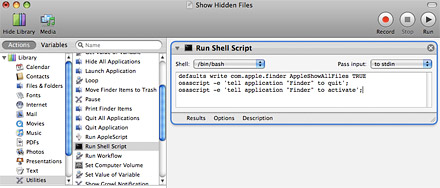
  2. On the left side you should see a list of Actions in the library. Choose Utilities and then double-click Run Shell Script in the next column (or drag it to the workflow area).
  3. Type the following code into the text box. I wouldn't recommend copying and pasting directly because the apostrophes & quotes have a tendency to get screwed up.

    defaults write com.apple.finder AppleShowAllFiles TRUE
    osascript -e 'tell application "Finder" to quit';
    osascript -e 'tell application "Finder" to activate';
    Show hidden files on Mac
  4. In the menu bar, go to File > Save As Plug-In. Type in a name like "Show Hidden Files" and click the Save button.
  5. Since it's not a good idea to leave hidden files turned on all the time, we also need to create a plug-in which brings things back to normal. Keeping the same command as before, simply change TRUE to FALSE in the workflow and go to File > Save As Plug-In again. This time name it "Hide Hidden Files" and click Save.
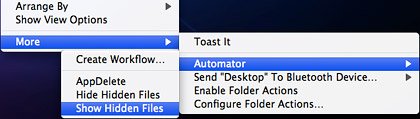
Our work in Automator is complete and now it's time to enjoy the fruits of our labor — all 3 minutes of it. Right-click anywhere on your desktop or in a Finder window. In the popup menu that displays, go to More > Automator > Show Hidden Files. There they are! All your hidden files should now be visible. When you no longer have a need to see them, right-click again and this time choose Hide Hidden Files from the menu.
Show hidden files on Mac
Oh, and there is one last thing… (sorry, I had to say it). It's easy to remove these plug-ins from your system by going to Users/[username]/Library/Workflows/Applications/Finder and dragging the two files to the Trash.

Sabtu, 24 April 2010

Assemble A No-Fuss Mailing List Using Zotero & Gmail.


Say goodbye to 'copy & paste'.  There are easier ways to organize information.  Zotero, a handy Firefox extension, picks up whereGoogle's ailing Notebook application leaves off.
Marketed as a research tool, it is actually a tiny miracle.  Not only can it be used to bookmark information, but it also permits its user to highlight or add sticky notes to pages.  Furthermore, it sports an impressive search capability, just as Google Notebook has done.
Fortunately, Zotero also allows users to drag and drop highlighted information directly into a note, eliminating the need to press a "clip" or "paste" button.  For this reason, Zotero is an excellent program to use if you desire to put together a mailing list.

Download Zotero


Zotero is a free & handy piece of software that is easy to install. Equipped with a portable bookmarking tool, the Zotero application provides space for you to deposit information you discover on the internet. Doing so is easy.  Once downloaded, Zotero's extension can be opened from the bottom corner of your screen (just like Google's soon defunct Notebook extension). Once opened, it will expand to fill a third of the screen.
To get started with a new notebook, you will only need to press an icon titled "New Standalone Note" and begin to type into a blank page in the 3rd column of the Zotero pane. Next, highlight any information from the internet that is of particular interest to you, just as you would do if you were preparing to copy & paste it into a document . However, instead of needing to worry about opening up a Word document, you can simply drag the info directly into the notebook. Here, it can be modified, and can later be exported by being dragged outside of the notebook to a desired spot.
In addition to this convenient drag & drop feature, Zotero also permits users to simply record a page's URL, as well as record a screenshot of the page.

Research Your Prospects

Plenty of information exists online to suit the needs of a wide range of aspiring entrepreneurs. When useful email addresses are collected in one place, they can be worth a pretty penny. Instead of worrying about needing to purchase this information from data gathering experts, why not just gather it yourself?
Since Zotero's extension does not require repeated users to enter user IDs and passwords, it is an easy place to store useful information about potential business prospects. In fact, getting in and out of Zotero is even easier than logging onto the internet.

Open & Title a New Standalone Note

While Zotero permits you to tag items with the URL code from which they originate, the easiest way to save email addresses is to simply drop them one by one into a standalone note. Should you later have questions about the email address you've saved, you can always Google the email address in question and you'll most likely get a list of results that includes the site from which you extracted the address.
Conveniently, Zotero automatically saves your work, just as Google's Notebook & Google Docs does. This can be a lifesaver if you're called away by an instant message, by a co-worker, or by a family member.

Send Your Mail Via Gmail

I recommend Gmail over Hotmail because, of the two, Zotero proved to be more compatible with Gmail when I performed a side-by-side comparison.  A chunk of email addresses can be pulled out of your Zotero notebook and dropped directly into the BCC line of an email.  Although Standard Edition Google accounts permit users to send 500 emails per day to external recipients, Google itself recommends to users to bypass this restriction by creating multiple email accounts.
And this is the least of what Zotero can do.  Although using Zotero takes a little work & ingenuity, it is a real lifesaver in the end. It frees up your energy to tackle complex projects without having to worry about getting overwhelmed.

Better Than Google Notebook?

Now it's time for the big question:  Do you feel like Zotero is a worthy replacement to Google Notebook?  Let us know if you've tried Zotero yet.  If you have, how do you like it?  Do you have any tips for others about how to make the most of Zotero?

Two Easy Ways To Synchronize Zotero Data


Compared to the older generations, modern-day web-based writers are very lucky. Most of the tedious and time consuming research part of writing is now available from the comfort of the keyboard. We just type our queries and the hordes of results will appear before our screen.
But research is more than just collecting data. It's also about compiling and presenting the results. Many MakeUseOf readers have pointed out that for formal writing like academic writing, the Zotero research tool IS the unquestionable ultimate tool.

More Stable Versus More Features

Zotero research is a Firefox plugin designed to help people with their web research. It's been mentioned several times before.

The main page of the Zotero site has a short video tutorial which explains virtually everything that one needs to know about using the Zotero research tool. First time users should watch the tutorial to get acquainted with this research tool.
Currently, there are two versions of Zotero available. There's the latest stable version 1.0.10 and there's beta version 2.0b7.6 with more features. If you consider yourself a play-it-safe kind of person, you should stick with the stable. Otherwise, choose the beta.
There's a slight possibility of data loss in the beta version due to the still ongoing development of the synchronization feature. But with a good backup routine, this minor flaw should pose no threat at all.
Those who are willing to take the risk will be rewarded with many new features such as synchronization ability, compatibility with more word processors, and more collaboration options. The complete features list can be found here along with plugins to make the Zotero word processor friendly.

Synchronizing Zotero's Research Data

As mentioned above, if you are one of the Zotero v. 2 beta testers, you can enjoy the synchronization feature. But to use the feature, you need to register for a new Zotero account.
After the usual process of registering, you can start using the feature by attaching your Zotero installation to the account. Open Zotero by clicking the logo at the bottom right of your browser, or by using the default shortcut: Command + Shift + Z.
Then open Zotero Preferences and click Sync > Settings. Put down your account information there.
If you are working with several computers, you have to insert your account information to each Zotero installation in every computer.

Enhancing Zotero With Dropbox

The above method only works for v.2 users. There's another way to synchronize your Zotero data between computers that can be used by both v.1 and v.2 users: using help from Dropbox.
Zotero puts its data in a folder. By default, this folder is inside the Firefox Profile directory and is accessible only by Firefox.
Dropbox users can utilize this free service to sync and backup Zotero data using the method similar to the one described in this article. Basically, all you need to do is move the data folder to a location inside Dropbox folder and set Zotero installations in another computers to use that specific Dropbox folder to store the data.
Pointing Zotero data storage to a different location can be done from the Preference window. Go to the Advanced pane and click "Choose" under the "Data Directory Location". Browse and open the new location (the folder inside Dropbox folder).
Aside from the compatibility with v.1 and the automatic synchronizations and backups, using independent location to store Zotero data has another benefit. The data is also available to be used by another browser: Flock.
Flock is compatible with all of Firefox extensions. Meaning: you can also install Zotero under Flock. Independent location means that the data can be accessed simultaneously by Firefox and Flock. This is good news for all of you Flock lovers out there.
I've just started using the Zotero research tool, so there are still many things to learn. Veteran Zotero users, share your tips, comments and opinions in the comments below.