Halaman

Tampilkan postingan dengan label online Backup. Tampilkan semua postingan

Sabtu, 24 April 2010

5 Cool Apps That Make Dropbox Even More Useful


Dropbox, if you don't know about it yet, is an excellent synchronization tool. In fact it is one of our favorite tools to sync and backup files and other important data. Dropbox can seamlessly sync your files across multiple computers and also provides features like shared and public folders allowing you to share/sync only the content you want to be synced with the other computer.
Out of the box Dropbox works really well with support for Windows, Mac and Linux. The default functionality, however leaves a lot to be desired. For instance you can only sync files and folders that are contained within the My Dropbox folder.
Here we present some useful dropbox downloads – software tools and applications that you can use alongside Dropbox to make it even more useful. Some of them fill the voids left by the out of box functionality while some of them take Dropbox to a whole new level, using it for things far beyond synchronization.

JunctionSyncToyConduit

All of these Dropbox downloads fall in roughly the same category. They help you keep two folders in sync. So why would you need any one of these when you are already using Dropbox? Well, because you can use them to sync folders via Dropbox that are outside the My Dropbox folder for your account.
While all of these applications are fantastic, I must point out that you can use the mklink command on Windows and the ln command on Linux to create links to external folders from within the My Dropbox folder

Dropbox Portable / Dropbox U3

Both these Dropbox application downloads or add-ons serve the same purpose. They let you install and use Dropbox from your USB flash drive. Dropbox U3 is specially made for U3 Smart flash drives.
All you need to do is to unzip or install onto your Flash drive and you are set to use Dropbox with your flash drive. So now you can keep your pen drive data synced and backed up to the cloud easily!

MailDrop

MailDrop is one of my personal favorites. It lets you add files to your Dropbox using nothing but email. Here is how it works: it checks your mail account via IMAP. Any mail inside the Dropbox folder (label in Gmail speak) is checked for attachments and those attachments are uploaded to your Dropbox.
You will of course be required to provide your mail credentials so that MailDrop can access your account via IMAP. MailDrop's developer says that the email credentials are only used locally by MailDrop and you need not provide your Dropbox credentials.

Dropbox Copy Plugin

The Copy Plugin lets you copy or move files to your Dropbox folder via the right click context menu. It then copies the Dropbox public link on to the clipboard so you can share in a snap.

Akira

The Akira Dropbox download can let you control certain aspects of a remote machine via commands using nothing but Dropbox as the conduit. You can do tasks like running an application or shutting down the remote computer using Akira. While it cannot replace remote desktop or ssh login into a Linux machine, Akira provides a good basic set of commands that are pretty useful and easy to remember and use at the same time.
MakeUseOf has written a lot about Dropbox in the past.   Here's a small selection :
Do you use any other Dropbox downloads or custom scripts to make Dropbox even more useful? Let us know about them in comments!

Selasa, 20 April 2010

PyDropboxPath Changes the Name of Your Dropbox Folder


Windows/Mac/Linux: Dropbox lets you change the location of your automatic syncing folder, but doesn't let you change the name. For those hoping for aharmonious dual-boot system, or just fine-grained control, that's problematic. A tiny little app saves the day.
We've previously detailed how to sync folders outside your Dropbox folder before, using symbolic links to pull them in as sub-folders. And for most purposes, that works fine. But if you're dual-booting a Windows/Linux system, or even Windows/Mac, you might notice that Dropbox names its folder just "Dropbox" on Mac and Linux, but "My Dropbox" on Windows. That means supporting two different sync folders on one computer, which, especially for larger paid accounts, can mean quite the hard drive commitment. Then again, you might also just want to give your Dropbox folder a personal touch, like naming it "Instant Backup" for friends who aren't tech savvy, but do need some basic backup. You can even set up Dropbox to sync to a removable thumb or USB drive, if that's your thing, though that's not exactly foolproof syncing.
pyDropboxPath is a Python script, also packaged up as an easy-to-run Windows .exe app, that locates your Dropbox database file and changes where it looks for synced files. You need to shut down Dropbox before running it, and some Windows users may get an error message about a missing DLL file—but those DLL files are helpfully included at the author's public Dropbox page. Instructions on running the Python scripts from Mac and Linux systems is included at the Readme-First page.
pyDropboxPath is a free download, and should work wherever Python does.

Minggu, 18 April 2010

Export Outlook Contacts to Google Gmail

You can export your Outlook Contacts as a Comma Separated Values (.csv) file and then import your contacts into your Gmail account.

Export Outlook Contacts

  1. In Outlook, on the File menu, click Import and Export.
  2. Click Export to a file, and then click Next.
  3. Click Comma Separated Values (Windows), and then click Next.
  4. In the folder list, click the Contacts folder, and then click Next.
  5. Browse to the folder where you want to save the contacts as a .csv file.
  6. Type a name for the exported file, and then click OK.
  7. Click Next.
  8. Click Finish.

Import Contacts into Google Gmail

  1. Log on to Gmail, and then click Contacts at the top of the page.
    The Contacts list opens in a new window.
  2. Click Import Contacts.
  3. Click Browse, and then navigate to the .csv file that you created in the "Export Outlook Contacts" section of this article.
  4. Select the file, and then click Import Contacts.
After your contacts are imported, a dialog box appears and displays the total number of contacts imported.
Notes
  • Outlook Contacts without an e-mail address are not imported.
  • Outlook distribution lists are not imported. Gmail does not support distribution lists.
  • If an Outlook Contact that matches an existing Gmail contact is imported, your Outlook Contact information replaces the Gmail contact.

Kamis, 15 April 2010

How To Run Multiple Dropbox Accounts Simultaneously [Mac]


One of the most useful computer applications that I've come across so far is Dropbox. There are already countless articlesabout this automatic folder backup and synchronization tool here in MakeUseOf, including many usage spin-offs like:synchronizing research data and triggering automatic downloads.
But if you are an avid Dropbox user, there might be times when you wish you could run multiple Dropbox accounts simultaneously.
Maybe because you need to seperate personal account and work account, or maybe you just want to get some extra storage – for free. Whatever the reason is, there are ways to run multiple Dropbox accounts at once. Here are the steps to do it on a Mac.
Before you start, you need to create an additional account with Dropbox.

Command Line Galore

Tweaking Dropbox to enable multiple instances requires meddling with Terminal and a whole bunch of command lines. I'm not a fan of command line myself, but I can tell you that the following process is not as "scary" as it sounds.
There are two steps that need to be taken. The first step is setting up the account.
  1. Open Terminal
  2. Type (or just copy and paste) this command:


    bash
    Hit enter and insert the next command line:
    HOME=$HOME/.dropbox-alt /Applications/Dropbox.app/Contents/MacOS/Dropbox &
    Here's how it looks like.
  3. A new Dropbox icon will appear in the menubar.


  4. A Dropbox account setup window will also pop up. Follow the setup steps.


  5. At the last setup step, tick the option to choose your own location of Dropbox folder. Hit the "Change" button to determine the location.


  6. After the setup process complete, you can close the terminal. Theoretically, the extra Dropbox instances will also be closed, but in my experiment it remained in the menubar.
That's the end of step 1. We'll go to the second step: creating the startup item for the extra Dropbox instance.
  1. Open the Terminal (again)
  2. Paste in this command line:


    mkdir -p ~/wherever you like/DropboxAltStarter.app/Contents/MacOS/
    In place of "wherever you like" really does mean anywhere on your hard drive that you like, such as ~/Documents/.
    In this step, you are creating an application called "DropboxAltStarter". But it's not completed yet.
  3. Then open TextEdit and paste:


    <?xml version="1.0" encoding="UTF-8"?> <!DOCTYPE plist PUBLIC "-//Apple//DTD PLIST 1.0//EN"         "http://www.apple.com/DTDs/PropertyList-1.0.dtd"> <plist version="1.0"> <dict>     <key>CFBundlePackageType</key>     <string>APPL</string>     <key>CFBundleExecutable</key>     <string>DropboxAltStarter</string>     <key>LSUIElement</key>     <string>1</string> </dict> </plist>
    Save the file as: "Info.plist" anywhere.
    (Please note that the <!DOCTYPE plist PUBLIC "-//Apple//DTD PLIST 1.0//EN" and"http://www.apple.com/DTDs/PropertyList-1.0.dtd"> above should be written within one line of code – separated by a space, but we need to break it down into two because it couldn't fit into the WP theme. So don't forget to enter it in one line).
  4. Right click on the "DropboxAltStarter" that you've created before and choose "Show Package Contents"


  5. Drag and drop the "Info.plist" file into the folder "Contents" (the same level as "MacOS" folder).


  6. Create a new text file and paste:


  7. #!/bin/bash HOME=/Users/$USER/.dropbox-alt           /Applications/Dropbox.app/Contents/MacOS/Dropbox
    (Again, the HOME=/Users/$USER/.dropbox-alt and/Applications/Dropbox.app/Contents/MacOS/Dropbox should be written in one line of code separated by a space. You know what to do.)
    Then save the file as "DropboxAltStarter" (sans quote). Don't forget to uncheck the "If no extension is provided, use ".txt"" box to prevent TextEdit from saving the file as text file.
  8. Repeat steps 4 and 5 above to put the "DropboxAltStarter" file into the "MacOS" folder.


  9. Open Terminal and type this command:


    chmod 755
    Before you hit enter, drag and drop the "DropboxAltStarter" file to the Terminal to finish the command.
    Then hit enter.
  10. Now you have a working app. You can move it to the "Applications" folder if you like, double click it to open the second dropbox account.


  11. You can also add the newly created app to your start up list by going to "System Preferences > Accounts > Login Items" menu.


After the long journey

Whew! That was quite a long ride, wasn't it?
The work is done, but there's still one thing to add: To know which Dropbox account is which, you can assign different logo to one of them. Go to Dropbox' "Preferences > General" and choose the B&W logo for one of the accounts.
If you are a Windows user, you can use Dropbox addon called Dropboxen to achieve the same result.
So, what would you do with two Dropbox instances? Do you know the way to run multiple Dropbox accounts? Share your thoughts and opinion using the comment below.

Senin, 22 Maret 2010

Cara upload Ke Hosting…


okeh.. beberapa waktu yang lalu aku ditanyo teman, gimana ya cara upload file ke hosting atow ke web kita…

mungkin ini sedikit artikel yang bisa membantu teman teman yang ingin belajar, sama seperti saya,
Pertamo klo ingin mudah meng-Upload ato meng-unggah file dari komputer ke web hosting kita gunakan fasilitas FTP. Hmm.. FTP?? apa tuh?? google aja yah… atow ntr saya bahas laen kali… haha…
lanjut, disini saya mencoba tuk menggunakan fasilitas FTP dari Web Hosting, misal kita hosting di tempat gratisan seperti 110mb.com atow freehostia.com
kita buka WEB FTP gratis jg pke misal menggunakan net2ftp.com
akan muncul tampilan tuk kita login, seperti dibawah ini :


FTP Server kita isi dengan domain kita, misal riyands.110mb.com
username : username kita di hosting, password juga….
Trus kita Enter, atow LOGIN deh…
selanjutnya akan tampil seperti dibawah ini :

kita klik Upload untuk meng-upload ke hosting kita….
setelah di klik akan muncul tampilan dibawah ini:

kita Browse file yang akan di upload td, "Add another" untuk menambah file yang akan di upload….
okeh, setelah di browse kita klik submit atow Conteng
Upload to directory adalah folder tempat kita upload… misal kita punya folder di hosting "images" maka Upload to directory nya = /images
nah, selesai dah kita upload menggunakan ftp dari net2ftp.com
oh iya, klo ada teman yang membuat web menggunakan FrontPage, dan akan mengupload di hosting maka seluruh file harus di upload ke folder yang sama seperti di komputer kita.
misal di komputer file index.html, trus ada folder images beserta file2 lainnya.. upload semua deh.. satu-satu.. hehe…
tp klo gak mau satu2, dibuat dalam bentuk .zip aja, trus baru di upload and di Unzip di net2ftp bisa jg tuh..
okeh, itu aja, mohon maaf klo ada yang kirang jelas, tp tenang, bisa teman2 tanya disini,  mungkin aku bs bantu ettt… tp aku masih belajar jg loh.. he.. :)
Semoga suKses yah…. Cayo!!!

Sabtu, 06 Maret 2010

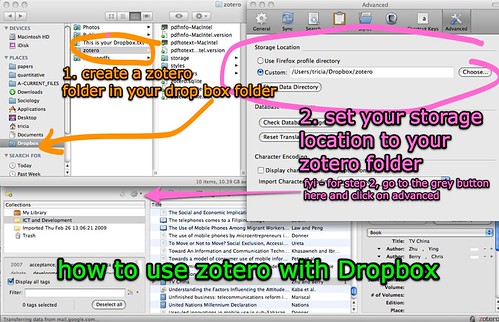
Zotero + Dropbox

So I've tried the Zotero extension for Firefox a while back and it is just about a must have application, especially for us pointy-headed academic types. But the current version suffers the same Achilles heal as local bookmarks: the database of stored information resides on the hard drive of the computer you are currently using.

Zotero is now trying out a version 1.5 preview that will provide "Sync" technology between computers, but with the aid of Dropbox, you can take advantage of distributed storage and get the same functionality as distributed bookmarks within the Google Toolbar.

Simply install Dropbox into your OS and the Zotero extension into your Firefox 2+ browser and then point the Storage Location on the Advanced tab of the Preferences menu option to a folder you create in your local Dropbox directory -- and presto, access to your Zotero database from all of your computers.

I'm currently using it on the multiple computers in my office, laboratories and home across Win2K, WinXP and Ubuntu. Nifty.

Jumat, 05 Maret 2010

zotero love: how to use dropbox as your backup for zotero


zotero love: how to use dropbox as your backup for zotero by  Tricia Wang 王圣捷.