Halaman

Tampilkan postingan dengan label Mac OS. Tampilkan semua postingan

Kamis, 03 Juni 2010

Insert a Drop Down Calendar Menu In Excel – Choose a Date!


So you want to create a drop down calendar in Excel? Apart from sending alerts to Outlook from Excel (working on that article as well) this has been the most requested how-to as of late. For example:
Reader Tim Asks:
How do I insert a calendar as a way for a user to click on the cell have the date box open and choose the date that should be in the cell? Also where do I send the beer?
Reader Wayne Asked:
I am sure that I saw a pull down menu in a worksheet cell.  I want to have a cell formated so that I can have a pull down menu of a calendar in which to choose the date.
This seems like it would be so easy yet when you look around on-line the answers are all full of VBA scripts and custom code.
I assume you just want someone using the spreadsheet to be able to select a cell, have a calendar drop down and then populate the field with whatever date the person chooses. Yes it can be done. Yes it is fairly involved. And yes, I have a workaround.
Would you like the easiest, cheesiest, sleaziest way to do this? Well then watch this:

Jumat, 30 April 2010

AWAS VIRUS - Waspadai Kiriman Email dari 'Facebook'

Siapa yang pernah menerima file asing berbentuk .zip, yang mengatas namakan Facebook sperti gambar sebelah? Jika pernah berhati-hati lho. Bisa jadi itu adalah virus baru bernamaOficla. ... JANGAN DIKLIK FILE ZIP-nya kalau mau selamet.

Sebenarnya Oficla ini mirip dengan Bredolab atauPendex di tahun 2009, karena payloadnya memang mirip. Norman antivirus mendeteksinya sebagai W32/Oficla.FA.

Walau varian awalnya sudah terdeteksi oleh program antivirus di akhir tahun 2009, virus ini memiliki kemampuan mengupdate dirinya setiap kali di deteksi oleh program antivirus dan setiap kali menginfeksi ia akan mendownload virus baru ke situs yang telah dipersiapkannya.

Jika dapat virus ini, bukan cuma scam (email bohong) yang diterima, tetapi email mengandung virus yang akan menginstalkan program jahat dengan isi yang direkayasa sedemikian rupa sehingga sangat meyakinkan sehingga pengguna awam Facebook akan langsung menjalankan lampiran tersebut tanpa berpikir dua kali.

Hal ini terjadi karena perkembangan pembuat malware saat ini sudah bukan programmer iseng yang ingin menunjukkan jati dirinya dengan membuat virus, tetapi ujung ujungnya untuk cari duit, sudah menjadi kejahatan terorganisir dimana membuat virus dan mengarahkan ke Rogue Antivirus / Fake Antivirus sudah menjadi mata pencaharian bagi sebagian kalangan. Pokoke Profi dah Gan ..


Apa Akibatnya?

Akibat yang ditimbulkan oleh virus ini dapat dibilang sangat merepotkan, bukan hanya password Facebook anda yang dapat hilang, tetapi dengan menjalankan virus ini anda sudah memberikan akses pada semua kredensial (username dan password) di komputer anda, termasuk data kartu kredit dan data keuangan lain yang pernah atau akan anda gunakan untuk transaksi online.

Karena itu, salah satu cara yang terbaik untuk terhindar dari virus ini adalah jangan mudah mempercayai apa yang datang di email karena semuanya bisa dipalsukan. Jangankan pesan, gambar atau background yang bisa dibuat semirip mungkin dengan situs Facebook, pengirim (from) juga dapat dipalsukan seakan-akan dari administrator Facebook. Jadi jangan percaya juga begitu aja email dari admin.


Tapi bagi yg pengen tahu dan coba coba virus itu,  klik aja zip filenya...

Selasa, 27 April 2010

OS X Tricks: How to show hidden files on a Mac with the help of Automator.

Unlike Windows, the Mac operating system does not make it easy to view the hidden files on your computer. Apple does this for our own safety since messing with hidden files can get ugly, but in certain cases it still needs to be done.
Although just about anybody could need to at some point, web developers are probably the most common group of people who work with hidden files on a regular basis. For example, the other day I needed to edit a .htaccess file on my server and couldn't find where it went after downloading it to my desktop. I knew it was there, but since the filename starts with a dot (".") Mac OS X is set to hide it by default. Generally this behavior is a good thing, but not in this particular instance.
Running a command in Terminal is the most basic way to show hidden files on a Mac. While that method works fine, it sure is a pain to remember the code every time you want to toggle it on or off. Instead, we're going to utilize the power of Automator (which is built into Mac OS X) to create a Finder plug-in that can be easily accessed at any time. Please note this method does not work in 10.6 Snow Leopard.
  1. Coincidentally, the first step is to launch Automator from the Applications folder. If you've never used this program before, don't worry. It's extremely confusing to newcomers (myself included), but our task for this tutorial is very simple.
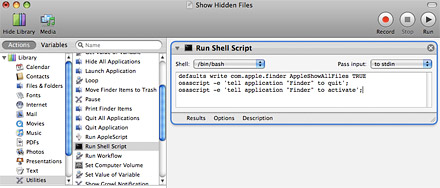
  2. On the left side you should see a list of Actions in the library. Choose Utilities and then double-click Run Shell Script in the next column (or drag it to the workflow area).
  3. Type the following code into the text box. I wouldn't recommend copying and pasting directly because the apostrophes & quotes have a tendency to get screwed up.

    defaults write com.apple.finder AppleShowAllFiles TRUE
    osascript -e 'tell application "Finder" to quit';
    osascript -e 'tell application "Finder" to activate';
    Show hidden files on Mac
  4. In the menu bar, go to File > Save As Plug-In. Type in a name like "Show Hidden Files" and click the Save button.
  5. Since it's not a good idea to leave hidden files turned on all the time, we also need to create a plug-in which brings things back to normal. Keeping the same command as before, simply change TRUE to FALSE in the workflow and go to File > Save As Plug-In again. This time name it "Hide Hidden Files" and click Save.
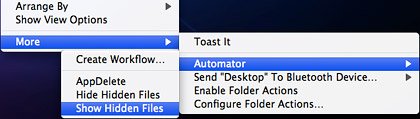
Our work in Automator is complete and now it's time to enjoy the fruits of our labor — all 3 minutes of it. Right-click anywhere on your desktop or in a Finder window. In the popup menu that displays, go to More > Automator > Show Hidden Files. There they are! All your hidden files should now be visible. When you no longer have a need to see them, right-click again and this time choose Hide Hidden Files from the menu.
Show hidden files on Mac
Oh, and there is one last thing… (sorry, I had to say it). It's easy to remove these plug-ins from your system by going to Users/[username]/Library/Workflows/Applications/Finder and dragging the two files to the Trash.

Minggu, 18 April 2010

How To Share The Internet Connection Between Mac and PC


Here's the scenario that brought me to write this article: the ISP I've signed up with decided to temporarily block the internet connectivity in our area. Where I live, it's actually possible — things like these do happen without reason. Because of that, Mark O'Neill suggested purchasing a UMTS device that would allow me to go online just about anywhere with reception. So I did. It costed me quite a bit but I thought it would be worth the money.
Now, here's the tricky part. In my home network, we have 2 Macs and one PC running on Windows XP. The UMTS device connects via USB. How do we decide who gets to use it? We put our thinking caps on and finally decided that it would be easier to share the internet connection using one of the Macs. I rolled up my sleeves and got to work.
Internet sharing between Macs is basically very easy but if you add a Windows PC into the mix, things get a little problematic. Sharing the internet connection between Mac and PC turned out to be harder than I thought. I'll explain why in a minute. But first, let's just assume that we only needed to share the connection between 2 (or more) Macs via AirPort (WiFi). It's very simple.
Open System Preferences and click on Sharing.
Before Internet Sharing can be enabled, you first have to configure the proper settings.
In the 'Share your connection from' dropdown list, select the port that has internet connectivity. In the screenshot above, I have "Ethernet" selected when it actually should be USB — ignore that. Then select how you would like to share the connectivity. I chose AirPort so that I can share the connection with several other computers. Checking the box next to 'AirPort' unbricks the 'Airport options' button.
Click on that button and configure your network name and security options.
Alright, here's where the whole Windows and Mac concoction starts to rear its ugly head. Due to the different methods that the two operating systems deals with Hex encryption, the password you enter here will not be easily accepted by Windows. A Windows PC will be able to detect the wireless network but it will not be able to join.
Here's the workaround. Select the 128-bit WEP encryption option and enter a 13-character password. Then, rename the network to something really short without spaces. When you're done, hit OK.
Now you can check the box next to 'Internet Sharing'. You may get a prompt to start AirPort, click Start. Right, the connection is shared. Macs detect the network automatically (and so will iPhones and iPod touches) and will connect to it as though it's a regular router.
On the Windows PC, a little bit of manipulation is required. Turn on the wireless adapter and right-click on its taskbar icon to select "View available wireless networks". In the subsequent window, click on "Change advanced settings".
Click on the Wireless Networks tab and then click the 'Add' button to add our shared network.
Print the network name accurately, then set the network authentication to 'Shared', data encryption to 'WEP', uncheck the box next to "This key is provided for me automatically" and enter the 13-character password.
Click on the Authentication tab and disable IEEE 802.1x authentication. Next, click on the Connection tab and make sure that it will connect when in range. Click OK and apply the settings.
It should now try to connect to the shared AirPort connection. Cross your fingers. This sort of busts the myth that Macs and Windows won't work well together, doesn't it?
I noted a few oddities during the whole procedure: 40-bit WEP encryption didn't work when trying to share the internet connection between Macs and PC. The password was always incorrect. Then I changed it to 128-bit and everything was well. Also, the network name must not contain any spaces. The Windows PC wouldn't connect to "Jackson Chung's MacBook" but it connected with "jxn".
How would you go about this procedure from a Window's point of view? I would love to hear it. Tell me how — in the comments!

Senin, 22 Februari 2010

How To Use Your Hotmail With Apple Mail app in OS X.


Mail.app or Apple Mail is an e-mail client included with Mac OS X operating system. Apple Mail uses the SMTP, POP3, and IMAP protocols, and supports MobileMe and Exchange via IMAP. Both the iPhone and the iPod touch included a mobile version of Apple Mail. Mail.app offers Notes and To-dos which can be synced with iCal and it also introduced a built-in RSS reader. Mail for Leopard features more than 30 professionally designed stationary templates that make a virtual keepsake out of every email you send. Mail works with the most popular email provider, like Gmail, Yahoo! Mail, and AOL Mail, automatically configuring those cryptic server settings for you for hotmail you have to do a small work. Here we have a simple to follow guide for the users who wants to use their Hotmail or Windoows Live  account with Mail.app
First of all Launch Apple mail >>> Then type you name where it asks you to
Then where it asks you to Put your email address Enter in in this format
And then put in your password
Then click Continue and on the next page enter this info
Account Type : POP
Description : Windows Live
Incoming Mail Server : pop3.live.com
Username : Example@live.com Example@hotmail.com
Password : Put your password Here
Then Click the Continue Button >>> Then on the next page enter this info
Description : Windows Live
Outgoing Mail Server : smtp.live.com
Click the "Use Authentication" Box
Username : Example@live.com Example@hotmail.com
Password : Put your password Here
Click Continue and your done After that click the get mail button and all will work.

Set up Windows Live Hotmail in OS X Mail.app


Windows Live Hotmail A.K.A. MSN Hotmail and commonly referred to simply as Hotmail, is a free web-based emailservice operated by Microsoft as part of its Windows Live group.  It has over 270 million users worldwide as of 2008. Some time ago it wasn't possible to set up Hotmail with the Mail application  in OSX (at least without third-party apps/plugins). But recently, Microsoft announced POP3 access  free for all Hotmail accounts. So now you can set up Hotmail in Mail.app with the help of following guide.
  1. Start Mail.app
  2. Go to Mail » Preferences, and click on Accounts.
  3. Click on the plus button (lower left) to add a new account.
  4. Type must say POP, and give the account a description.
  5. You must fill in the following information correctly or the account will not work:


    • Incoming Mail Server: pop3.live.com
    • Username: Your Hotmail address
    • Password: Your Hotmail password
  6. Click on Continue
  7. Set the Outgoing Server  to smtp.live.com , then click Continue, and click Continue again.

If everything was done correctly, you can now read and send Hotmail with the built-in Mail.app in OS X.