Halaman

Tampilkan postingan dengan label zotero. Tampilkan semua postingan

Sabtu, 24 April 2010

Assemble A No-Fuss Mailing List Using Zotero & Gmail.


Say goodbye to 'copy & paste'.  There are easier ways to organize information.  Zotero, a handy Firefox extension, picks up whereGoogle's ailing Notebook application leaves off.
Marketed as a research tool, it is actually a tiny miracle.  Not only can it be used to bookmark information, but it also permits its user to highlight or add sticky notes to pages.  Furthermore, it sports an impressive search capability, just as Google Notebook has done.
Fortunately, Zotero also allows users to drag and drop highlighted information directly into a note, eliminating the need to press a "clip" or "paste" button.  For this reason, Zotero is an excellent program to use if you desire to put together a mailing list.

Download Zotero


Zotero is a free & handy piece of software that is easy to install. Equipped with a portable bookmarking tool, the Zotero application provides space for you to deposit information you discover on the internet. Doing so is easy.  Once downloaded, Zotero's extension can be opened from the bottom corner of your screen (just like Google's soon defunct Notebook extension). Once opened, it will expand to fill a third of the screen.
To get started with a new notebook, you will only need to press an icon titled "New Standalone Note" and begin to type into a blank page in the 3rd column of the Zotero pane. Next, highlight any information from the internet that is of particular interest to you, just as you would do if you were preparing to copy & paste it into a document . However, instead of needing to worry about opening up a Word document, you can simply drag the info directly into the notebook. Here, it can be modified, and can later be exported by being dragged outside of the notebook to a desired spot.
In addition to this convenient drag & drop feature, Zotero also permits users to simply record a page's URL, as well as record a screenshot of the page.

Research Your Prospects

Plenty of information exists online to suit the needs of a wide range of aspiring entrepreneurs. When useful email addresses are collected in one place, they can be worth a pretty penny. Instead of worrying about needing to purchase this information from data gathering experts, why not just gather it yourself?
Since Zotero's extension does not require repeated users to enter user IDs and passwords, it is an easy place to store useful information about potential business prospects. In fact, getting in and out of Zotero is even easier than logging onto the internet.

Open & Title a New Standalone Note

While Zotero permits you to tag items with the URL code from which they originate, the easiest way to save email addresses is to simply drop them one by one into a standalone note. Should you later have questions about the email address you've saved, you can always Google the email address in question and you'll most likely get a list of results that includes the site from which you extracted the address.
Conveniently, Zotero automatically saves your work, just as Google's Notebook & Google Docs does. This can be a lifesaver if you're called away by an instant message, by a co-worker, or by a family member.

Send Your Mail Via Gmail

I recommend Gmail over Hotmail because, of the two, Zotero proved to be more compatible with Gmail when I performed a side-by-side comparison.  A chunk of email addresses can be pulled out of your Zotero notebook and dropped directly into the BCC line of an email.  Although Standard Edition Google accounts permit users to send 500 emails per day to external recipients, Google itself recommends to users to bypass this restriction by creating multiple email accounts.
And this is the least of what Zotero can do.  Although using Zotero takes a little work & ingenuity, it is a real lifesaver in the end. It frees up your energy to tackle complex projects without having to worry about getting overwhelmed.

Better Than Google Notebook?

Now it's time for the big question:  Do you feel like Zotero is a worthy replacement to Google Notebook?  Let us know if you've tried Zotero yet.  If you have, how do you like it?  Do you have any tips for others about how to make the most of Zotero?

Two Easy Ways To Synchronize Zotero Data


Compared to the older generations, modern-day web-based writers are very lucky. Most of the tedious and time consuming research part of writing is now available from the comfort of the keyboard. We just type our queries and the hordes of results will appear before our screen.
But research is more than just collecting data. It's also about compiling and presenting the results. Many MakeUseOf readers have pointed out that for formal writing like academic writing, the Zotero research tool IS the unquestionable ultimate tool.

More Stable Versus More Features

Zotero research is a Firefox plugin designed to help people with their web research. It's been mentioned several times before.

The main page of the Zotero site has a short video tutorial which explains virtually everything that one needs to know about using the Zotero research tool. First time users should watch the tutorial to get acquainted with this research tool.
Currently, there are two versions of Zotero available. There's the latest stable version 1.0.10 and there's beta version 2.0b7.6 with more features. If you consider yourself a play-it-safe kind of person, you should stick with the stable. Otherwise, choose the beta.
There's a slight possibility of data loss in the beta version due to the still ongoing development of the synchronization feature. But with a good backup routine, this minor flaw should pose no threat at all.
Those who are willing to take the risk will be rewarded with many new features such as synchronization ability, compatibility with more word processors, and more collaboration options. The complete features list can be found here along with plugins to make the Zotero word processor friendly.

Synchronizing Zotero's Research Data

As mentioned above, if you are one of the Zotero v. 2 beta testers, you can enjoy the synchronization feature. But to use the feature, you need to register for a new Zotero account.
After the usual process of registering, you can start using the feature by attaching your Zotero installation to the account. Open Zotero by clicking the logo at the bottom right of your browser, or by using the default shortcut: Command + Shift + Z.
Then open Zotero Preferences and click Sync > Settings. Put down your account information there.
If you are working with several computers, you have to insert your account information to each Zotero installation in every computer.

Enhancing Zotero With Dropbox

The above method only works for v.2 users. There's another way to synchronize your Zotero data between computers that can be used by both v.1 and v.2 users: using help from Dropbox.
Zotero puts its data in a folder. By default, this folder is inside the Firefox Profile directory and is accessible only by Firefox.
Dropbox users can utilize this free service to sync and backup Zotero data using the method similar to the one described in this article. Basically, all you need to do is move the data folder to a location inside Dropbox folder and set Zotero installations in another computers to use that specific Dropbox folder to store the data.
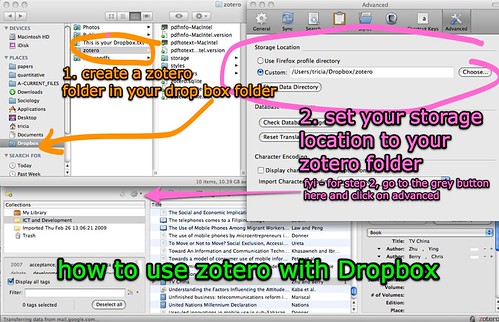
Pointing Zotero data storage to a different location can be done from the Preference window. Go to the Advanced pane and click "Choose" under the "Data Directory Location". Browse and open the new location (the folder inside Dropbox folder).
Aside from the compatibility with v.1 and the automatic synchronizations and backups, using independent location to store Zotero data has another benefit. The data is also available to be used by another browser: Flock.
Flock is compatible with all of Firefox extensions. Meaning: you can also install Zotero under Flock. Independent location means that the data can be accessed simultaneously by Firefox and Flock. This is good news for all of you Flock lovers out there.
I've just started using the Zotero research tool, so there are still many things to learn. Veteran Zotero users, share your tips, comments and opinions in the comments below.

Sabtu, 06 Maret 2010

Zotero + Dropbox

So I've tried the Zotero extension for Firefox a while back and it is just about a must have application, especially for us pointy-headed academic types. But the current version suffers the same Achilles heal as local bookmarks: the database of stored information resides on the hard drive of the computer you are currently using.

Zotero is now trying out a version 1.5 preview that will provide "Sync" technology between computers, but with the aid of Dropbox, you can take advantage of distributed storage and get the same functionality as distributed bookmarks within the Google Toolbar.

Simply install Dropbox into your OS and the Zotero extension into your Firefox 2+ browser and then point the Storage Location on the Advanced tab of the Preferences menu option to a folder you create in your local Dropbox directory -- and presto, access to your Zotero database from all of your computers.

I'm currently using it on the multiple computers in my office, laboratories and home across Win2K, WinXP and Ubuntu. Nifty.

Jumat, 05 Maret 2010

zotero love: how to use dropbox as your backup for zotero


zotero love: how to use dropbox as your backup for zotero by  Tricia Wang 王圣捷.